
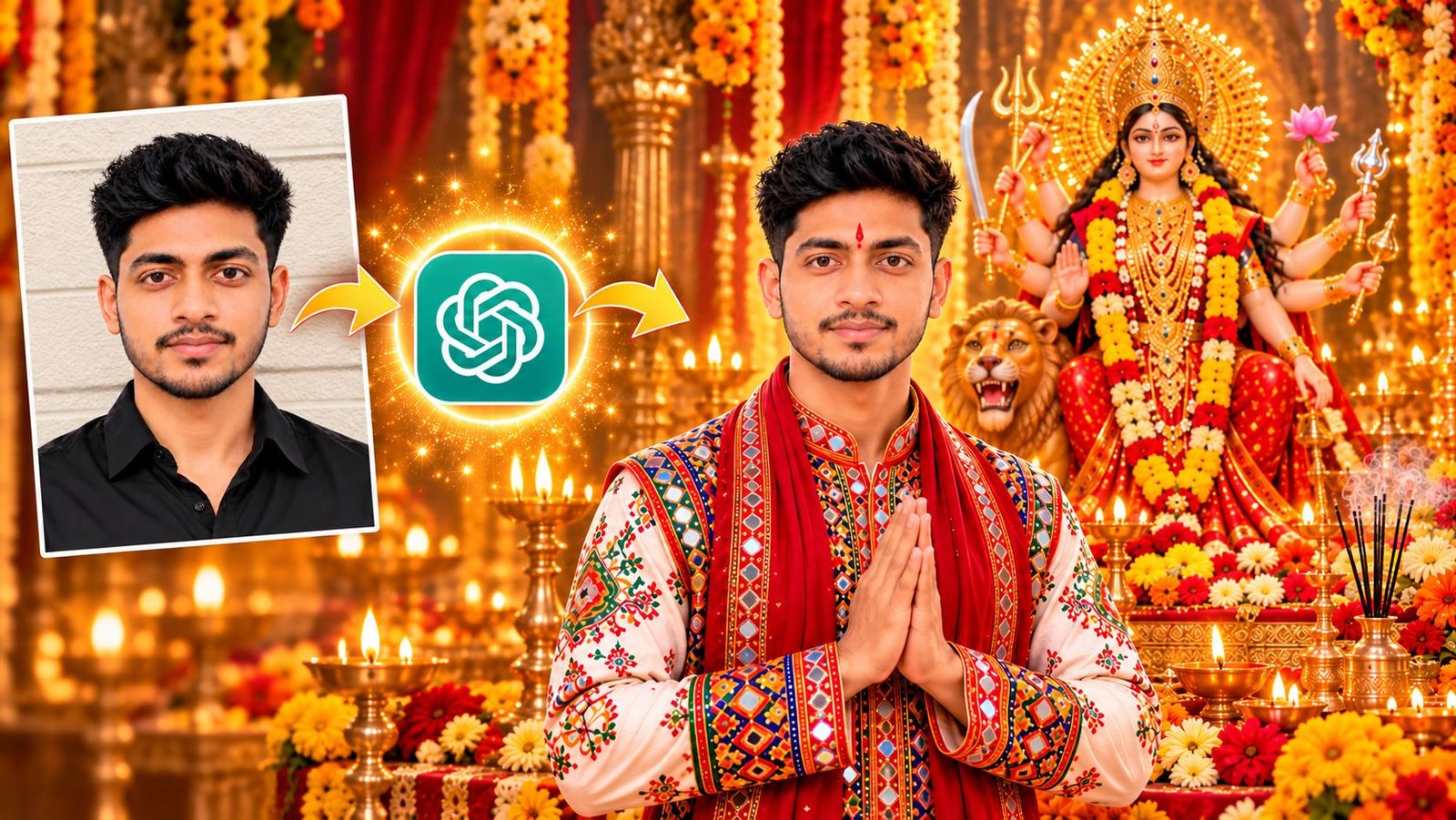
Have you ever wanted to make your photos look more professional without spending hours editing them? With ChatGPT, you can transform an ordinary picture into something amazing using a simple AI photo editing prompt.
Whether you want to improve your portrait, create a stylish social media photo, enhance your lighting, or give your picture a professional look, the right prompt can make a big difference.
In this guide, you will find a useful AI photo editing prompt for ChatGPT, examples of the results, and simple steps to edit your own photo. You don’t need advanced photo editing skills to get started. Just upload your image, copy the prompt below, and let ChatGPT help you bring your idea to life.
What Is an AI Photo Editing Prompt?
An AI photo editing prompt is a set of instructions that tells an AI tool how you want your image to look.
For example, you can ask ChatGPT to improve the lighting, create a clean background, enhance image quality, or give your portrait a professional photography style.
The more clearly you describe the result you want, the easier it is for the AI to understand your vision. You can also tell it which details should remain unchanged so the edited photo still looks like you.
AI Photo Editing Results
AI photo editing can help improve the appearance of a picture while keeping the main subject recognizable. The final result depends on the original image, your instructions, and the editing capabilities of the AI tool.
AI-Edited Photo
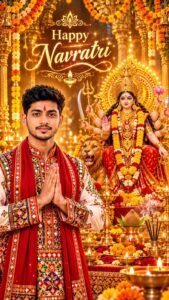
Using the provided male reference lauhai image, depict the person wearing a traditional Navratri drees, standing with folded hands (namaste) in front of a grand idol of Lord Mata Durgaaji decorated with marigold flowers, diyas and incense. A golden divine light surrounds both the devotee and Lord Mata Durgaa, symbolizing blessings. Ultra-realistic, high-quality 8K devotional atmosphere. Happy Navratri is written in elegant, glowing script behind him, radiating divine energy.How to Edit a Photo Using ChatGPT
Follow these simple steps to try the prompt yourself.
Step 1: Open ChatGPT
Visit ChatGPT and open a conversation. Make sure you are using a version that supports image uploads and image editing.
Step 2: Upload Your Photo
Click the attachment button and select the photo you want to edit from your device. Choose a clear image for the best starting point.
Step 3: Copy the AI Editing Prompt
Copy the prompt provided above. You can use it as written or customize it according to your needs.
Step 4: Send the Prompt
Paste the prompt into the chat and send it along with your uploaded image. ChatGPT will attempt to edit the image according to your instructions.
Step 5: Review the Result
Check the edited image carefully. If you want to make further improvements, ask ChatGPT to adjust the background, lighting, colors, or other specific details.
For example, you could say, “Make the background slightly brighter, but keep my face and facial features unchanged.”
Step 6: Save Your Edited Image
Once you are happy with the result, download or save the generated image using the available options.
Tips for Getting Better AI Photo Editing Results
Getting a good result is not just about using a long prompt. A few simple tips can help you achieve a more natural-looking image.
- Use a clear original photo: A well-lit, sharp image gives the AI a better starting point.
- Describe your desired result: Mention whether you want a professional portrait, cinematic look, clean background, or natural enhancement.
- Protect important details: Tell the AI to preserve your face, identity, and other features you do not want changed.
- Avoid too many effects: Excessive filters and artificial skin smoothing can make an image look unrealistic.
- Make small adjustments: If the first result is not quite right, request specific changes instead of repeating the entire prompt.
Frequently Asked Questions
Can I use this AI photo editing prompt for free?
You can try the prompt with ChatGPT, but image upload and editing availability may depend on your account, usage limits, and the features currently available to you.
Can ChatGPT edit my photo without changing my face?
You can instruct ChatGPT to preserve your facial features and identity. However, AI editing may still introduce small changes, so always review the result carefully.
Can I use this prompt for Instagram photos?
Yes. You can adapt the prompt for Instagram posts, profile pictures, portraits, and other social media images by specifying the style and composition you want.
How can I get more realistic AI-edited photos?
Start with a clear image, use specific instructions, and ask the AI to preserve natural skin texture, facial proportions, and realistic lighting. Avoid requesting too many effects at once.
Final Thoughts
You don’t need to be a professional photographer to experiment with AI photo editing. With a clear image and the right prompt, you can explore different styles, improve the appearance of your pictures, and create images that better match your vision.
Try the prompt above with your own photo and experiment with small adjustments until you find a result you like. You can also customize it for different backgrounds, lighting styles, and photography effects.
Found this prompt helpful? Save this page and share it with anyone who wants to experiment with AI photo editing using ChatGPT.