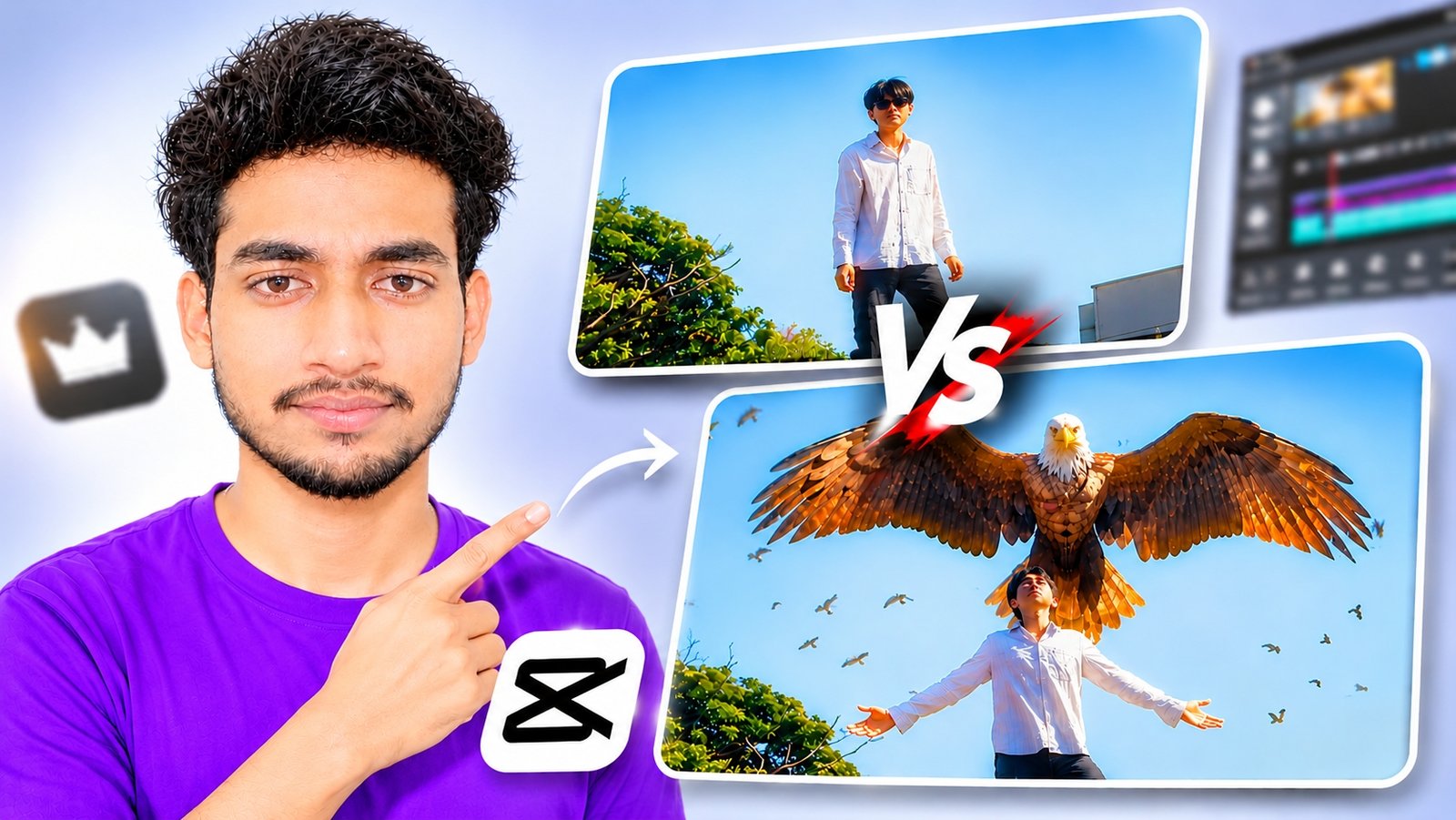
Jatayu AI Video Editing Prompt – Friends, if you browse Instagram Reels, you may have come across AI-generated videos featuring Jatayu. These videos often have cinematic environments, with a giant bird appearing at the centre of the scene. Many people are even creating such videos using their own photos and sharing them on social media. At first glance, these videos may look difficult to create, but the process is quite simple. You can create a similar video using one of your own photos. For this, we will use Google Flow AI. Simply upload your photo and enter the right prompt, and the AI will generate the video for you. In this article, I will share the prompt and explain the complete process step by step so you can easily create your own Jatayu AI video.
What Is Jatayu AI Video Editing Trend
Jatayu AI video editing is a popular trend that involves transforming ordinary photos into scenes inspired by mythological movies. You might have seen videos showing a giant Jatayu flying through the sky alongside a boy. The entire scene looks so stunning that viewers may feel as if they are watching a scene from a movie. Creating such videos would have required a lot of editing work in the past, but AI has made the process much easier. With the help of prompts, you can even customise details such as Jatayu’s size, the background, and the camera angle. That’s why these kinds of videos are becoming increasingly popular on social media.
Simple Steps To Generate Your First AI Video
If this is your first time creating a Jatayu AI video, you don’t need to do much. First, open the Google Flow website on your mobile device and sign in using your Google account. Then, create a new project and select the video generation option. Next, upload a clear photo in which your face is easily visible. Now, copy the Jatayu AI video prompt provided below and paste it into the text box. Once everything is set up, click the ‘Generate’ button. The video may take some time to generate. Once it’s ready, watch the entire video to review the results. If a person or a particular scene doesn’t look right, you can modify the prompt and try again. When you are satisfied with the result, save the video and share it on your Instagram Reels.

IMAGE-TO-VIDEO PROMPT | JATAYU JI DIVINE ARRIVAL
Use the uploaded image as the exact starting frame. Create a photorealistic, emotionally
powerful Indian mythological cinematic sequence.
1. ABSOLUTE CAMERA LOCK
- Camera must remain completely stationary throughout the entire video.
- No zoom, pan, tilt, rotation, shake, or reframing.
- Preserve the exact original camera angle, framing, perspective, and composition.
- Do not change the original sky, buildings, horizon, or environment.
2. STRICT BOY POSE LOCK
The boy in the foreground must remain completely frozen in his exact original pose.
- Preserve his exact body position and silhouette.
- Both arms must remain extended sideways at exactly the same angles.
- Hands, fingers, palms, legs, head, and torso must not move.
- Do not change his posture, proportions, clothing, or position.
- No breathing animation or body movement.
- The boy must remain identical to the original reference image in every frame.
IMPORTANT: The boy is a completely static foreground subject. Only Jatayu Ji and the
smaller birds are allowed to move.
3. PRESERVE ORIGINAL LIGHTNING AND LIGHTING
- Preserve the original lightning exactly as it appears in the reference.
- Do not remove, replace, redesign, or add new lightning.
- Maintain the same lightning patterns, brightness, color, and position.
- Do not change the original sky lighting or overall color grading.
- No new dramatic lighting effects.
4. JATAYU JI: DIVINE HUMAN-LIKE MYTHOLOGICAL DESIGN
Jatayu Ji must look like a majestic, divine mythological being, not an ordinary eagle.
Create an original cinematic mythological design with:
- A powerful eagle-like head and noble facial structure.
- Subtle human-like facial characteristics and expressive eyes.
- A wise, courageous, protective, and emotionally expressive presence.
- A dignified expression that conveys bravery, compassion, and sacrifice.
- A majestic humanoid-bird anatomy, combining powerful human-like proportions with
enormous realistic feathered wings.
- Detailed brown and golden feathers, powerful shoulders, and a regal mythological
appearance. His face should communicate emotion and intelligence, as if he is a conscious divine
guardian rather than an ordinary animal.
Keep his appearance believable, majestic, and photorealistic.
5. ONE SINGLE POWERFUL WING FLAP: FAST TO SLOW MOTION
This is extremely important. Jatayu Ji must perform only ONE powerful wing flap during the
entire sequence.
- Initially, Jatayu Ji is hidden below the bottom edge of the frame.
- He suddenly rises upward from below the frame with one strong, powerful wing flap.
- His wings spread outward during this single upward movement.
- His initial ascent is fast, energetic, and powerful.
- As he reaches the upper-middle background, the movement smoothly transitions into
dramatic slow motion.
- He fully extends both enormous wings into a majestic wide-wing flying pose.
- Once he reaches this position, he stops flapping completely.
- He remains suspended in the sky with both wings fully spread.
- Only extremely subtle feather movement and natural air resistance are allowed.
NO repeated wing flapping. NO continuous flapping. NO rapid bird-like fluttering. ONE FLAP
ONLY, THEN HOLD THE FINAL POSE.
6. SMALL BIRDS
Several smaller birds accompany Jatayu Ji during his entrance.
- They fly upward around him naturally.
- Keep their movement subtle and cinematic.
- A few birds may pass behind his enormous wings.
- Do not overcrowd the frame.
- Their motion should complement Jatayu Ji's grand arrival.
7. TIMING
- 0–1 second: Original scene, boy perfectly frozen.
- 1–2.5 seconds: Jatayu Ji makes one powerful upward flight with a single wing flap.
- 2.5–4 seconds: His ascent smoothly slows down as both wings extend fully.
- 4–6 seconds: Jatayu Ji holds his majestic wide-wing pose in the sky. No more flapping.
8. STRICT NEGATIVE PROMPT
No boy movement, no pose changes, no arm movement, no hand movement, no body
animation, no camera movement, no composition changes, no lightning changes, no
repeated wing flapping, no rapid fluttering, no ordinary eagle appearance, no cartoon
anatomy, no distorted human-like face, no malformed wings, and no excessive bird
movement.Create Realistic Jatayu AI Videos Using Your Photo
To make your face look natural and realistic in a Jatayu AI video, the first step is to choose a suitable photo. Make sure your face is clearly visible and that the photo has as few filters as possible. This can help the AI better recognise your facial features. Next, think about the scene you want to create in the video. For example, you could show yourself standing next to Jatayu or flying through the sky alongside him. To achieve this, describe your desired scene clearly in the prompt. Keep in mind that you may not get the perfect video on your first attempt. Your face might look slightly different, or Jatayu’s appearance may change. If that happens, modify your prompt and generate the video again until you get a result you like.
How To Make Jatayu AI Video With Google Flow
With the help of Google Flow, you can also create a Jatayu AI video. First, open Google Flow on your phone and upload a clear photo of yourself. Then, describe the scene you want to create, such as standing next to Jatayu, sitting on his back while flying, or appearing in a cinematic scene near a mountain. You can even ask Google Flow to help you write a suitable AI prompt. Next, generate an image using that prompt and check whether your face looks correct. Once you are happy with the image, use it in Google Flow to create a video. This way, you can create a scene of your choice and turn it into an AI-generated video.
How To Copy And Use Jatayu AI Video Editing Prompt
Now, let’s learn how to use the Jatayu AI video prompt. Copy the complete prompt provided in this article. First of all, make sure you don’t skip any lines, as the prompt contains specific instructions about the scenes and visual effects in the video. Next, open Google Flow AI and create a new project. Once you have uploaded your photo, paste the copied prompt into the prompt box. If you want to include something different in the video, feel free to customise the prompt according to your preferences. Now, click the ‘Generate’ button and wait for the video to be created. Once it’s ready, watch the entire video to check whether it matches your expectations.
Save And Share Your Final Video In HD Quality
Once you have finished creating your Jatayu AI video, it’s important to save it in the best available quality. Sometimes, a video may look great initially, but a loss of quality during downloading can affect its overall appearance. So, before downloading your video, preview it carefully to make sure everything looks right. If you are satisfied with the result, click the download button and save it in HD resolution, if available. The recommended aspect ratio for Instagram Reels is 9:16, which helps your video display properly on mobile screens. You can also add background music or simple effects using CapCut. Finally, export the video in high quality and share it on Instagram, Facebook, or YouTube Shorts.
Conclusion
So, friends, you have now learned how to create Jatayu AI videos. In the past, creating these types of videos required a lot of editing work, but with Google Flow AI, you can now create them using your phone. All you need is a good-quality photo and a well-written prompt. You can also add your favourite background music to make the video more appealing. In this article, I have explained the complete process, from writing the prompt to generating the final video. I hope this guide helps you create your own Jatayu AI video easily. If you face any problems, feel free to leave a comment below.